
Publishing Your Site
Take your site live and share it with the world.
Preview your site
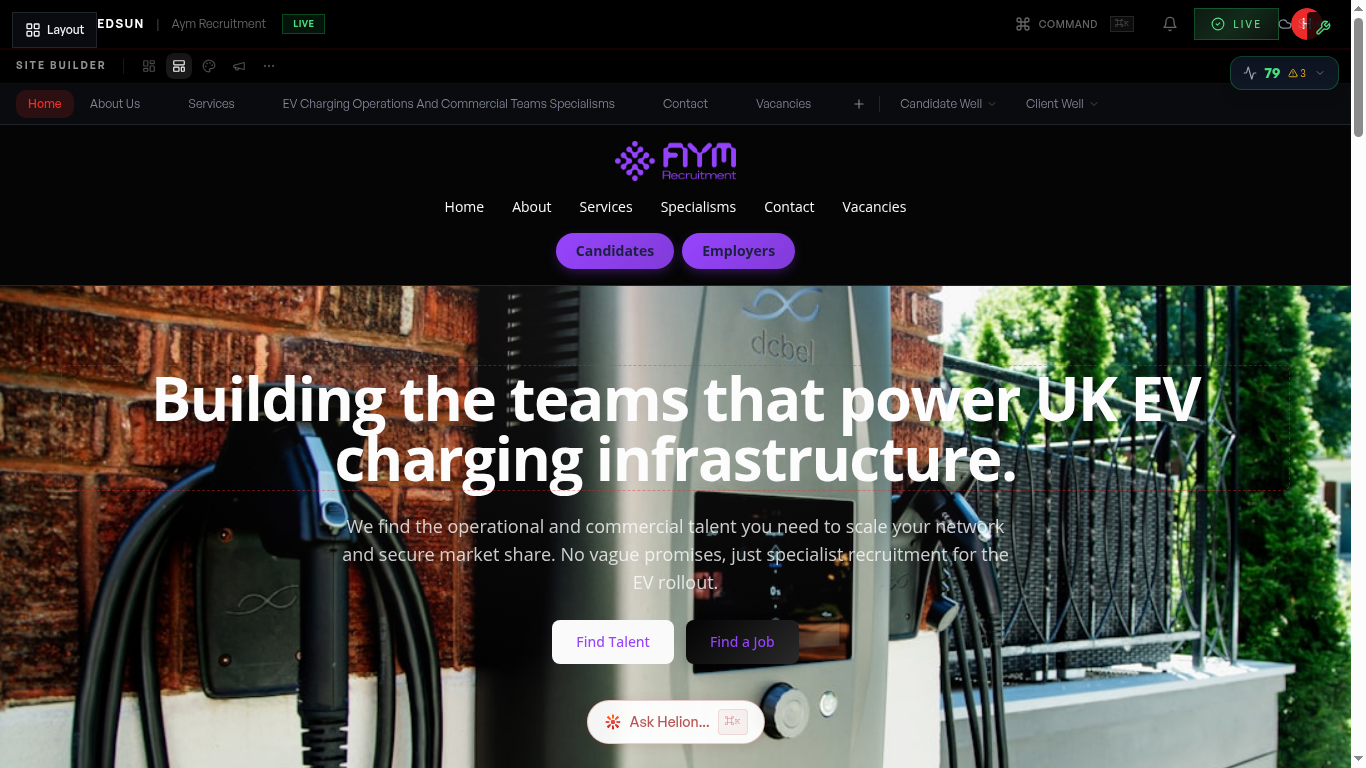
In the **Site** hub, use **Preview** in the editor toolbar to see the site without the editing chrome, and the **Desktop / Mobile** toggle to check both viewports. Move between pages using your site's own navigation on the canvas.
Hit Publish
**Publish** sits at the right-hand end of the editor toolbar, next to the save status. Click it and Redsun runs a pre-publish assessment before pushing your draft live. If your tenant hasn't been paid for yet, Publish opens the plan picker first — building is free, publishing is what you pay for.
Confirm it's live
After a successful publish the button reads **Published**. The green dot and your site address in the top-right of the admin masthead link straight to the live site — click it to check the published result.
Share your URL
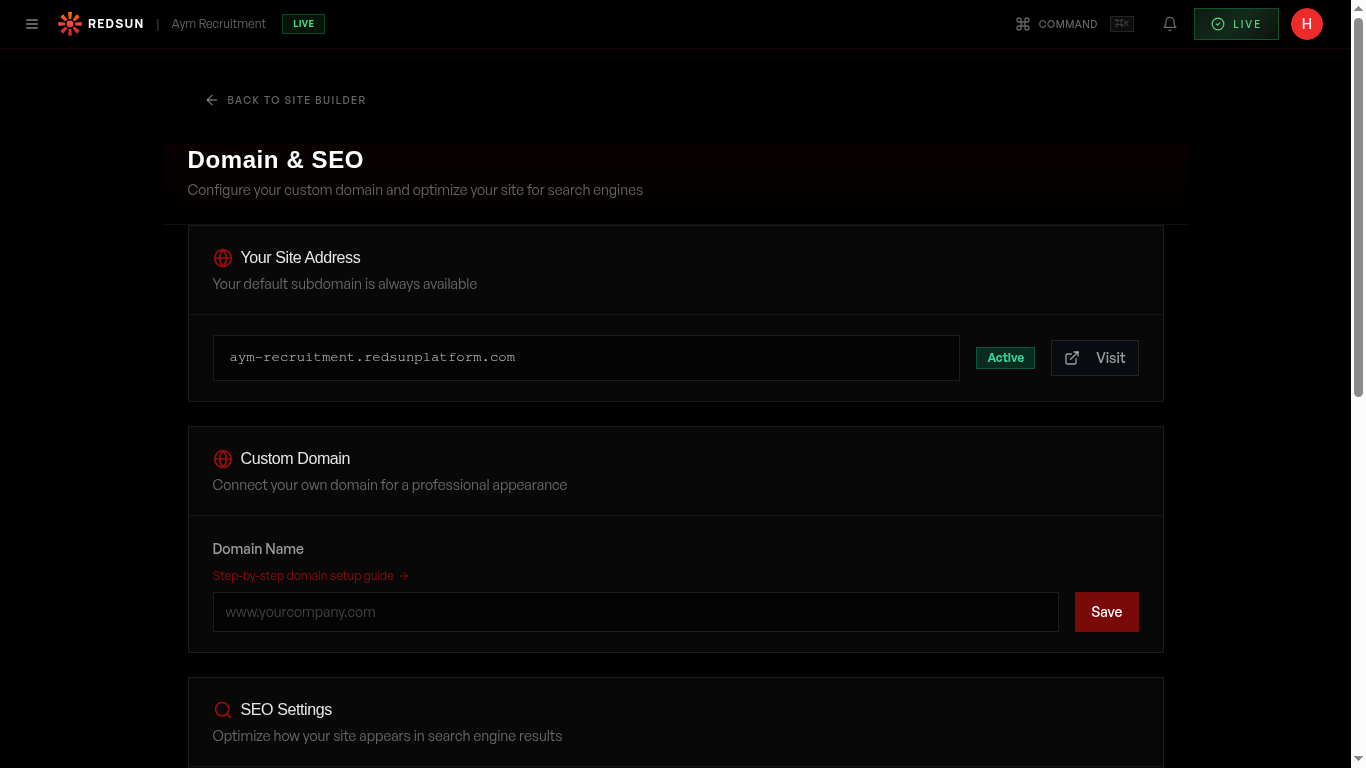
Copy your live site URL and share it on LinkedIn, email signatures, and job boards. Set up a custom domain from Settings → Domain for a branded address.
Set up your email signature links right after publishing — it's the easiest way to start driving traffic passively.
Guide complete
You've covered all 4 steps. Check out the related guides below.
Still need help?
Our support team is here to assist you.