
Using the Site Editor
Your site loads live in the editor — switch modes to edit text, images, links, layouts, and backgrounds.
Open the editor
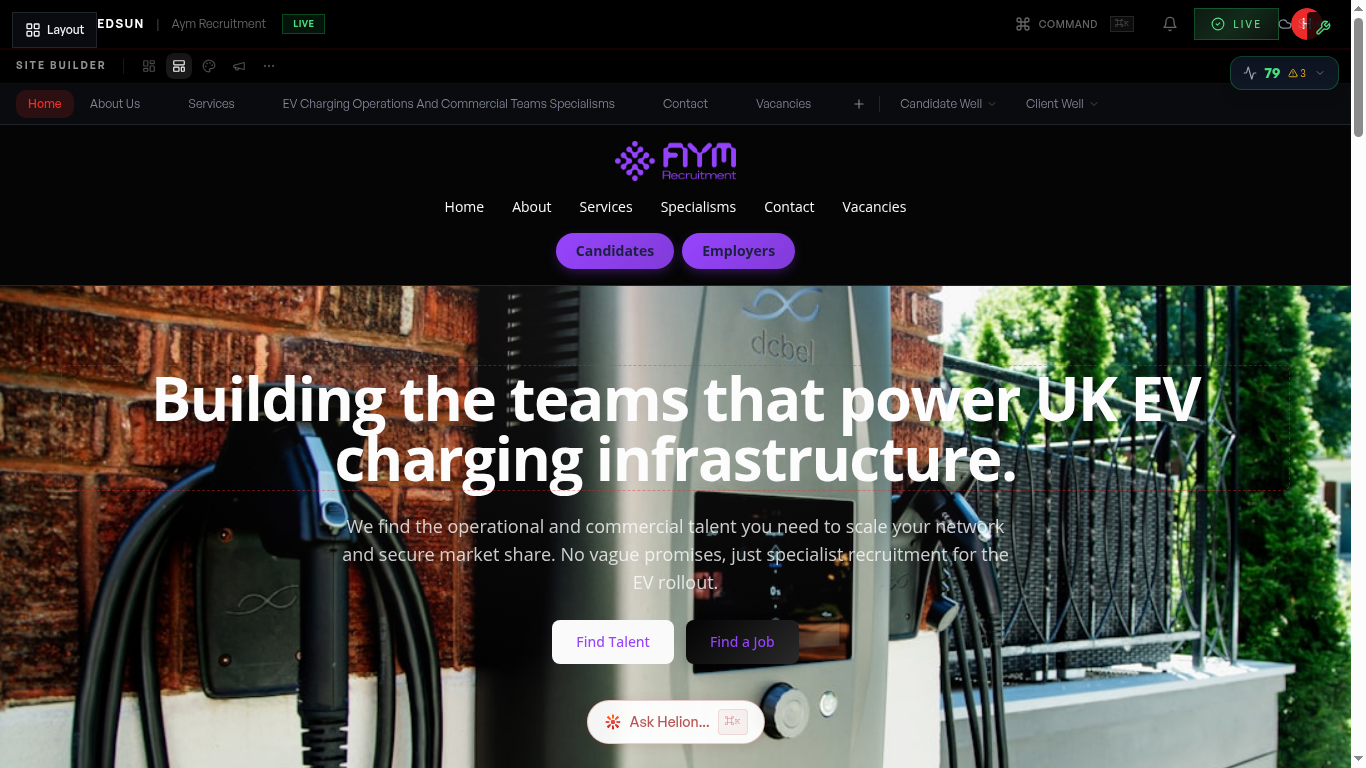
Open the Site hub and your site loads directly in the editor — what you see is your real site, live-editable. Every change saves automatically ('All changes saved' appears in the corner).
The four editing tools
The toolbar at the top switches what you're editing: • **Preview** — hides the editing chrome so you see the site as a visitor does. • **Contents** — text, images, logo and page names. Click anything to edit it in place. • **Colours** — recolour elements, backgrounds and site chrome. • **Layout** — links, layout variants, sections and pages. • **Motion** — animations on or off, and scroll speed. Previews live while selected.
Each tool highlights exactly what's editable, so you can't accidentally change the wrong thing.
Contents opens the list editors
With **Contents** selected, a second row appears with the editors for structured content: **Articles…** (your insights posts), **Team & lists…** (team, clients, testimonials, offices, stats, why-us, FAQs) and **Form fields…** when a form is selected.
Move between pages
Use your site's own navigation at the top of the canvas to move between pages — the editor follows your site's real structure, including the Candidate journey and Employer journey well pages.
Desktop and mobile
The **Desktop / Mobile** toggle at the right of the toolbar switches the canvas viewport, so you can check how copy and layout read on a phone before you publish.
Undo, redo, and autosave
Every edit is undoable — use the undo and redo buttons in the toolbar. Changes autosave to your draft as you work; the save status next to Publish reads 'Saving…', then 'Saved'. Nothing goes live until you publish.
Guide complete
You've covered all 6 steps. Check out the related guides below.
Still need help?
Our support team is here to assist you.