
Editing Sections
Edit copy inline, switch layouts, recolour elements, set backgrounds, and add sections from your theme's library.
Edit copy inline
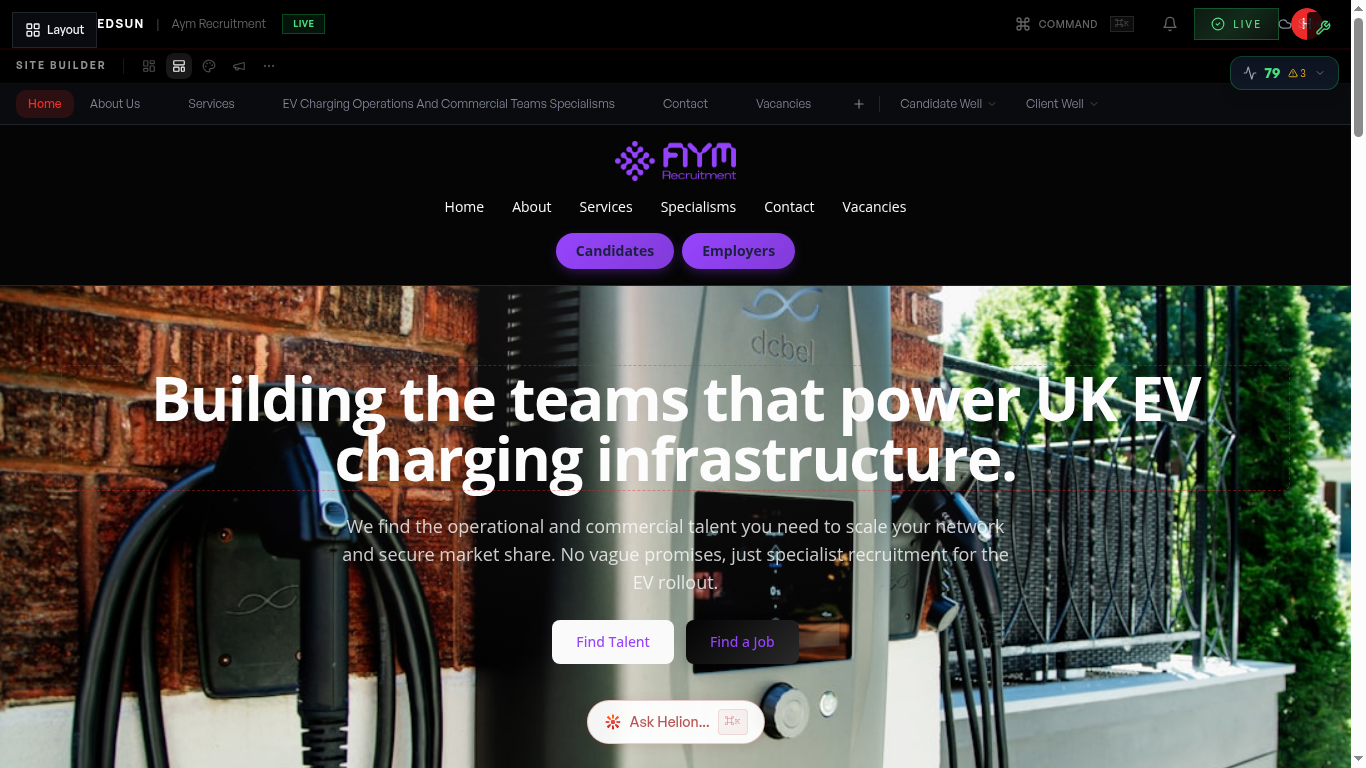
With **Contents** selected, click any headline, paragraph, or label and type — the change lands in place, in your theme's real typography. Everything textual is editable, including button labels.
Switch a section's layout
With **Layout** selected, each section shows variant arrows — step through the curated arrangements your theme ships for that section. Every option is designed for your theme, so any choice stays on-brand.
Recolour elements and backgrounds
With **Colours** selected, click a coloured element to change its colour role, or set a section background — a solid colour, gradient, image or video, with an optional overlay to keep text legible. Roles map to the brand palette you defined in the Brand hub, so recolouring stays consistent and follows automatically if you later change your brand colours.
Add sections from your theme's library
Use the **+ Add section** bar between sections. The **Add a section** dialog offers the archetypes your theme ships: FAQ, Meet the team, Client logos, Gallery, Awards & accreditations, Locations, Our story, Engagement tiers, Testimonials, By the numbers, How we work, Call to action, Why us, and Statement — each rendered in your theme's design language. Added sections are fully editable like any other.
Sections that need real data (team, client logos, office locations) stay empty until you add it in Contents → Team & lists, or until your CRM supplies it. Redsun never fills them with invented entries.
Hiding and restoring sections
Removing a section hides it rather than deleting it. When a page has hidden sections, a **Hidden on this page** row appears below the toolbar listing each one with a **restore** control.
Buttons and links
With **Layout** selected, click any button to change its label, destination, or style. Good for tuning calls-to-action without touching anything else.
Guide complete
You've covered all 6 steps. Check out the related guides below.
Still need help?
Our support team is here to assist you.