
Firefish CRM Integration
Connect Firefish to sync jobs, candidates, and activity data with Redsun.
Navigate to Connections
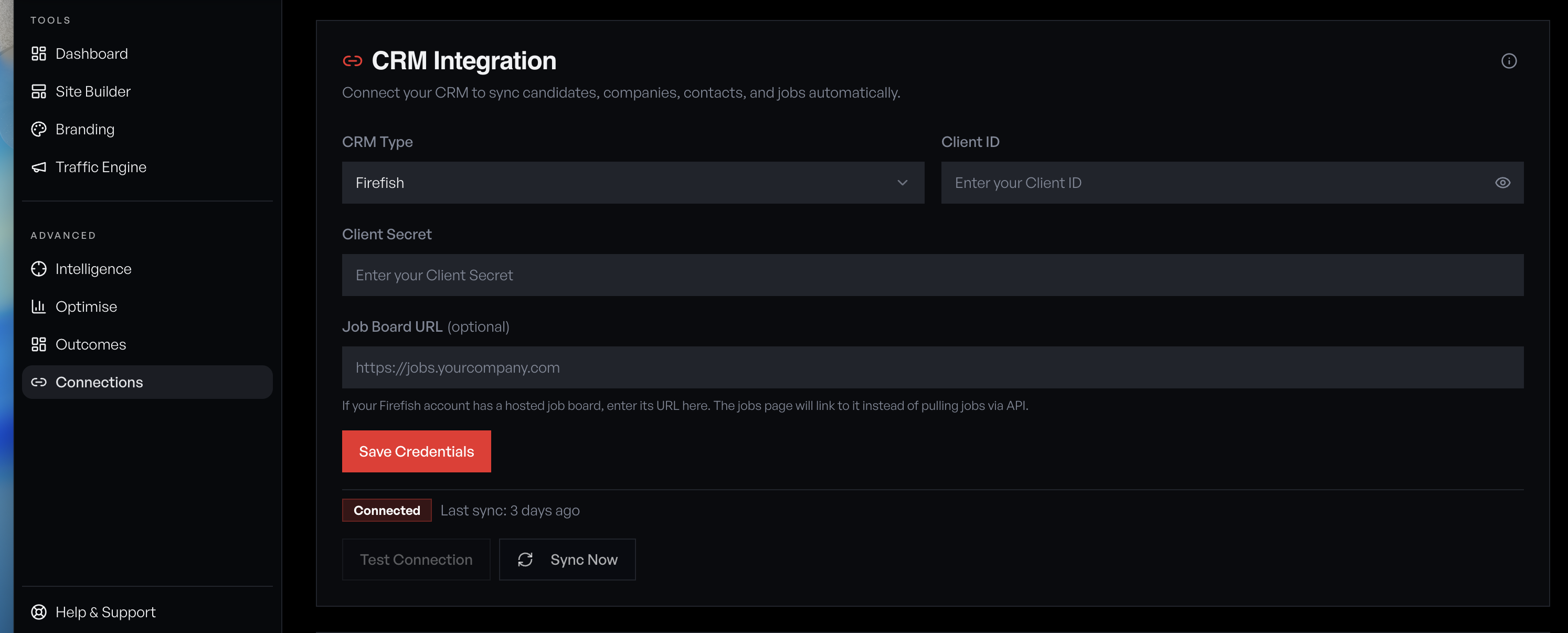
Go to **Settings** → **Connections**. You'll see the CRM Integration panel with a provider dropdown, credential fields, and connection status.
Select Firefish as your provider
Open the CRM Type dropdown and select 'Firefish'. The form updates to show the fields Firefish requires: Client ID, Client Secret, and an optional Job Board URL.
Generate your Firefish API credentials
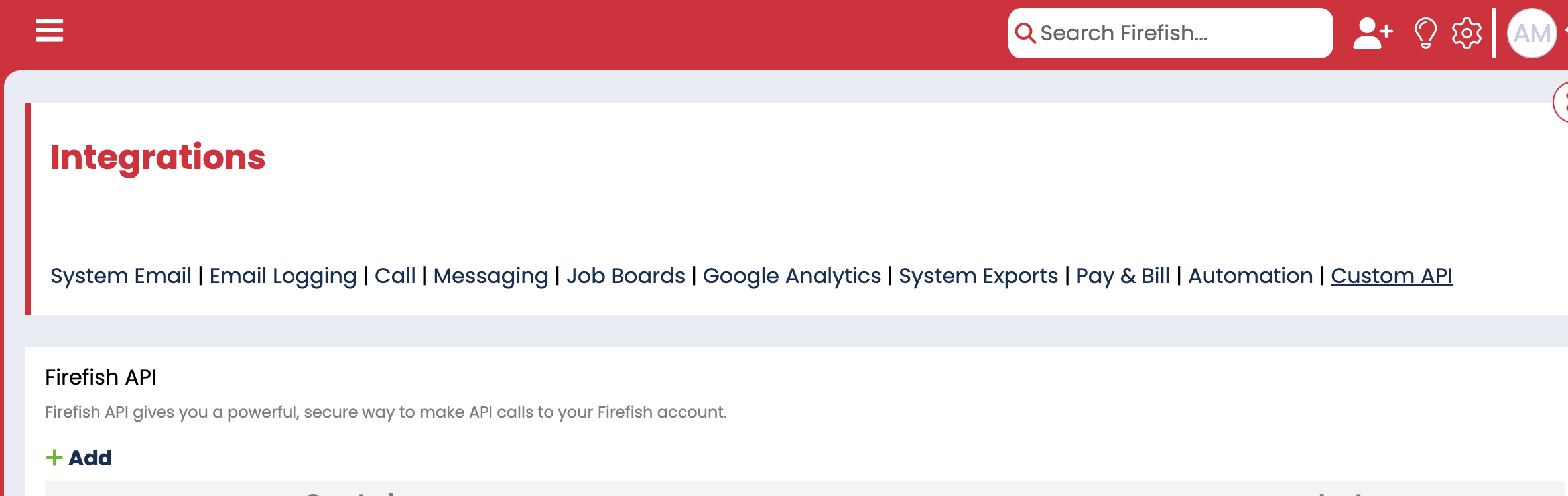
In Firefish, go to **Settings → Integrations → Custom API** and click '+ Add' to generate a new API client. Copy the Client ID and Client Secret, then paste them into the corresponding fields in Redsun.
Make sure your Firefish user account has API access enabled — contact your Firefish admin if the Custom API section isn't visible under Integrations.
Your API credentials grant full access to your Firefish data. Never share them. If compromised, revoke them immediately in Firefish settings and generate new ones.
Save and test the connection
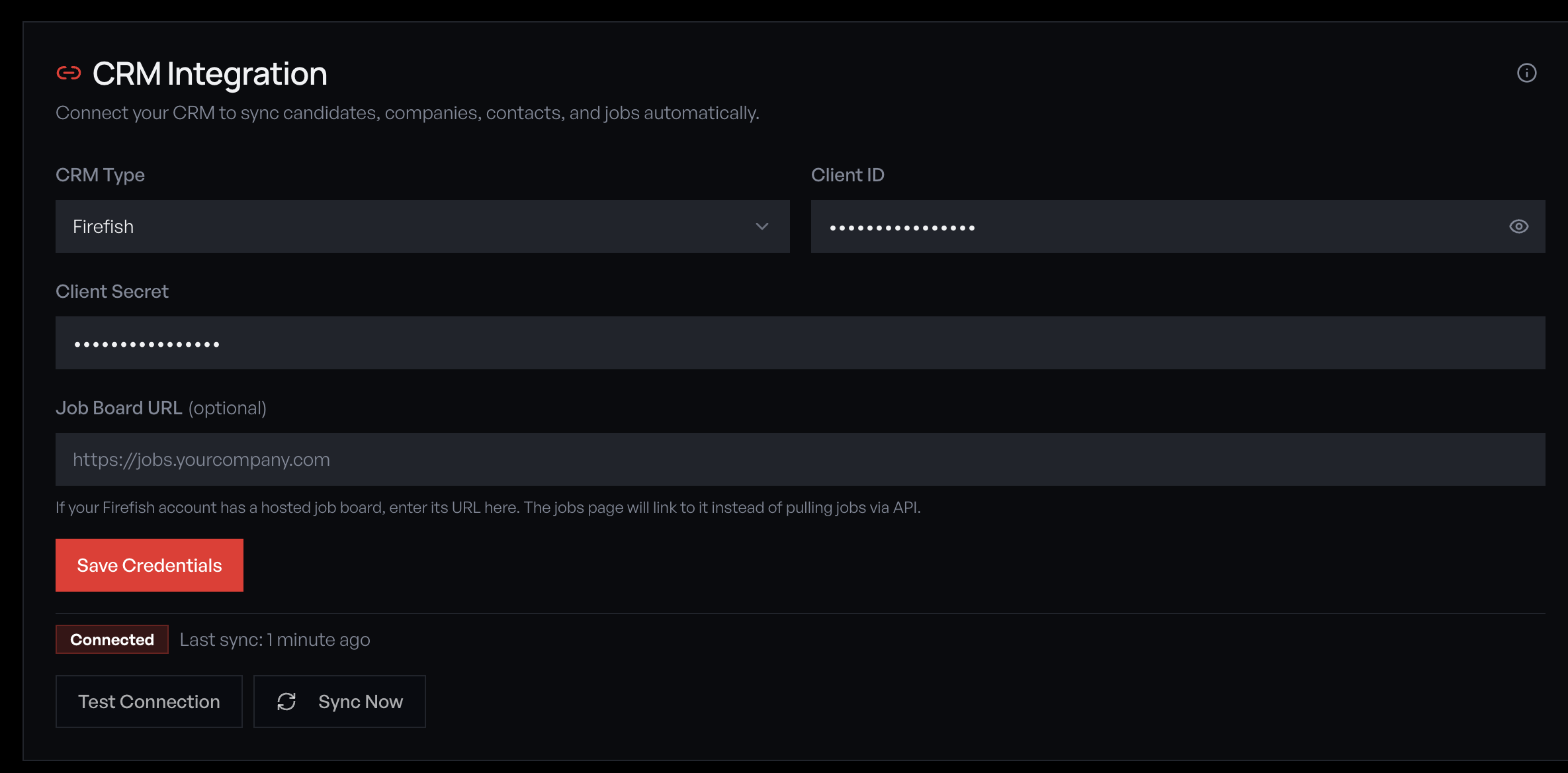
Click 'Save Credentials', then 'Test Connection'. If successful, the status badge changes to 'Connected' and shows the last sync time. If it fails, verify your Client ID and Client Secret are correct and haven't expired.
Run initial sync
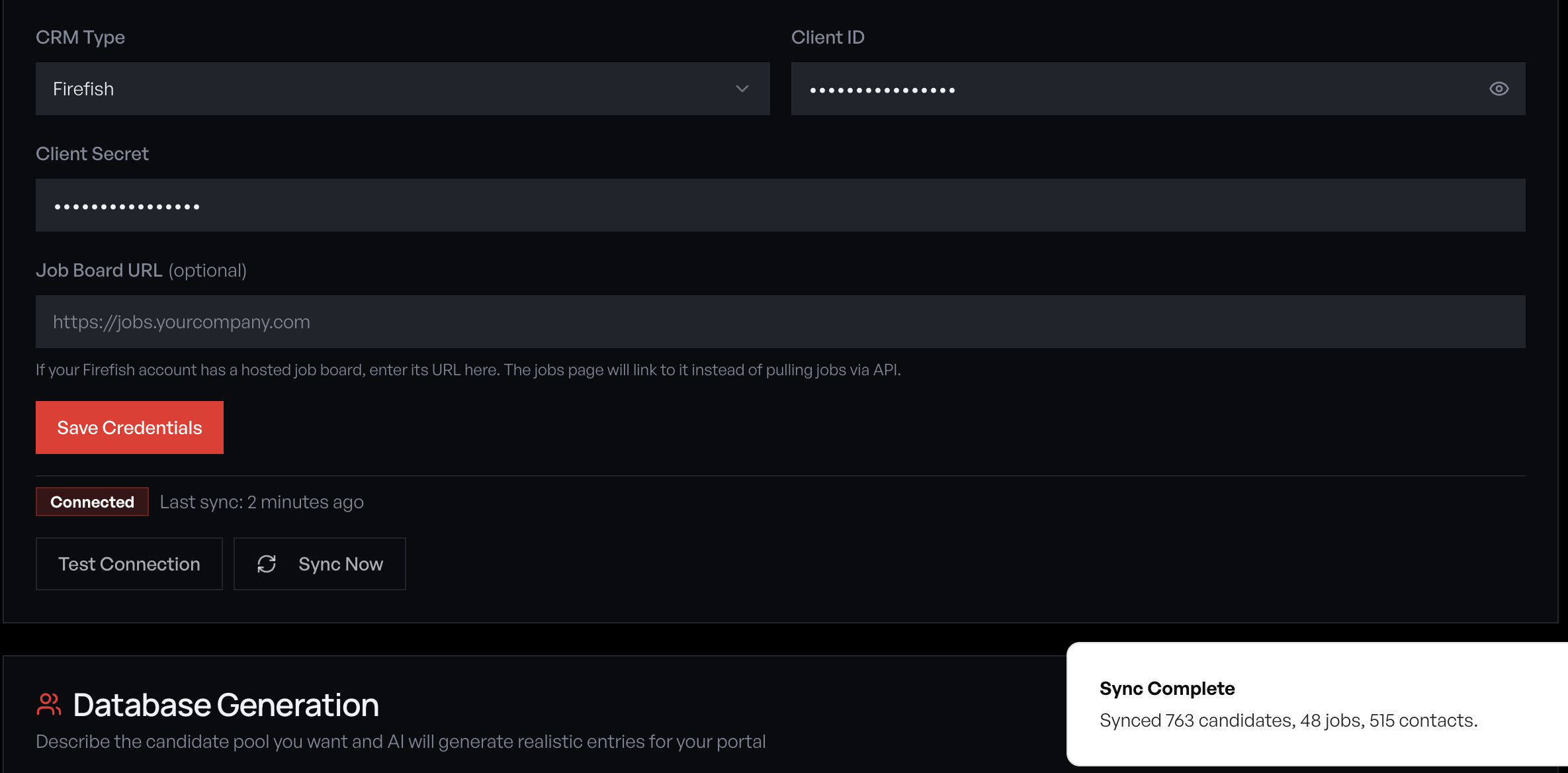
Click 'Sync Now' to pull jobs, candidates, and contacts from Firefish into Redsun. The initial sync may take a few minutes depending on your database size. A toast notification confirms completion with record counts.
What syncs from Firefish
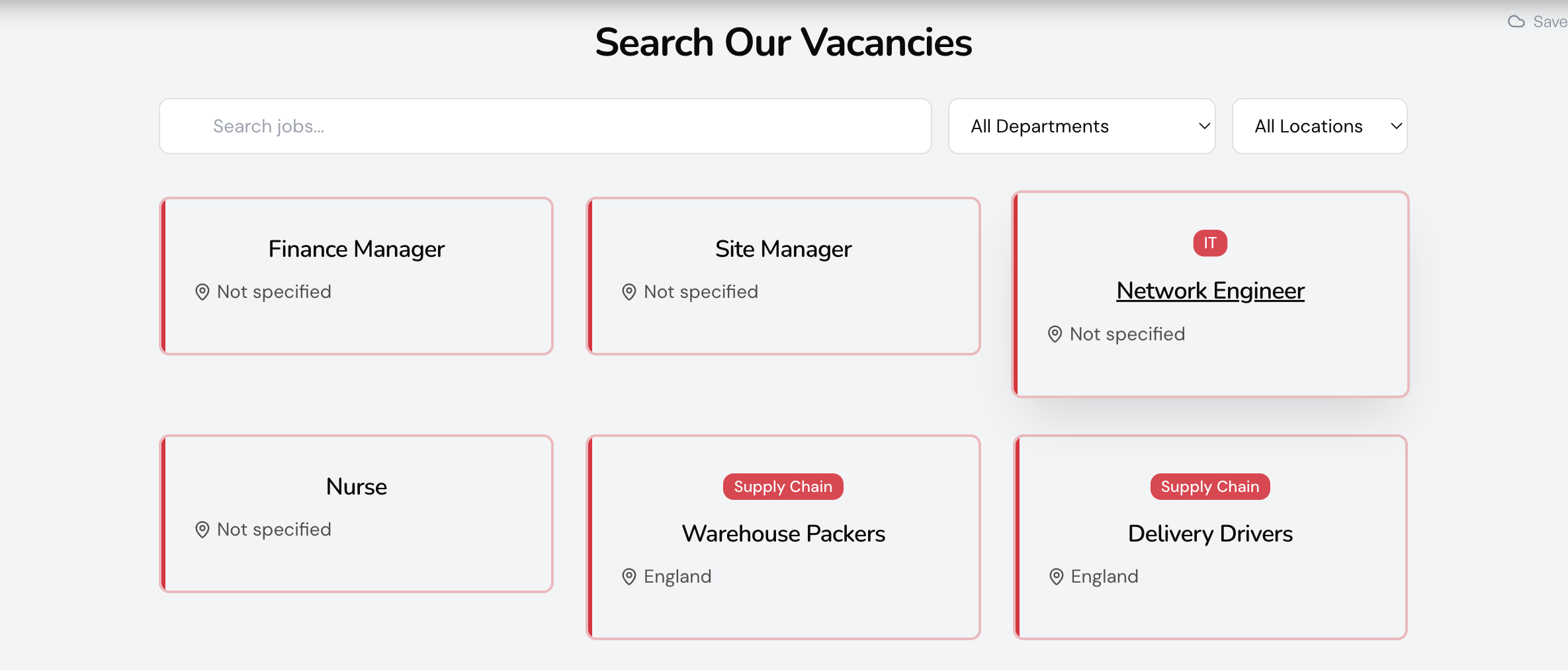
Redsun pulls the following from Firefish: • **Jobs** — Title, description, salary, location, status, and sector tags. Active jobs appear on your job portal with search, department, and location filters. • **Candidates** — Name, contact info, CV, skills, and placement history. Powers the talent snapshot in employer wells. • **Contacts** — Employer contacts and accounts. Used for visitor intelligence matching. The scheduled sync runs hourly. A manual sync is always available from the Connections screen. The Connections screen shows the record counts from the last run and what the synced data powers.
Monitor sync health
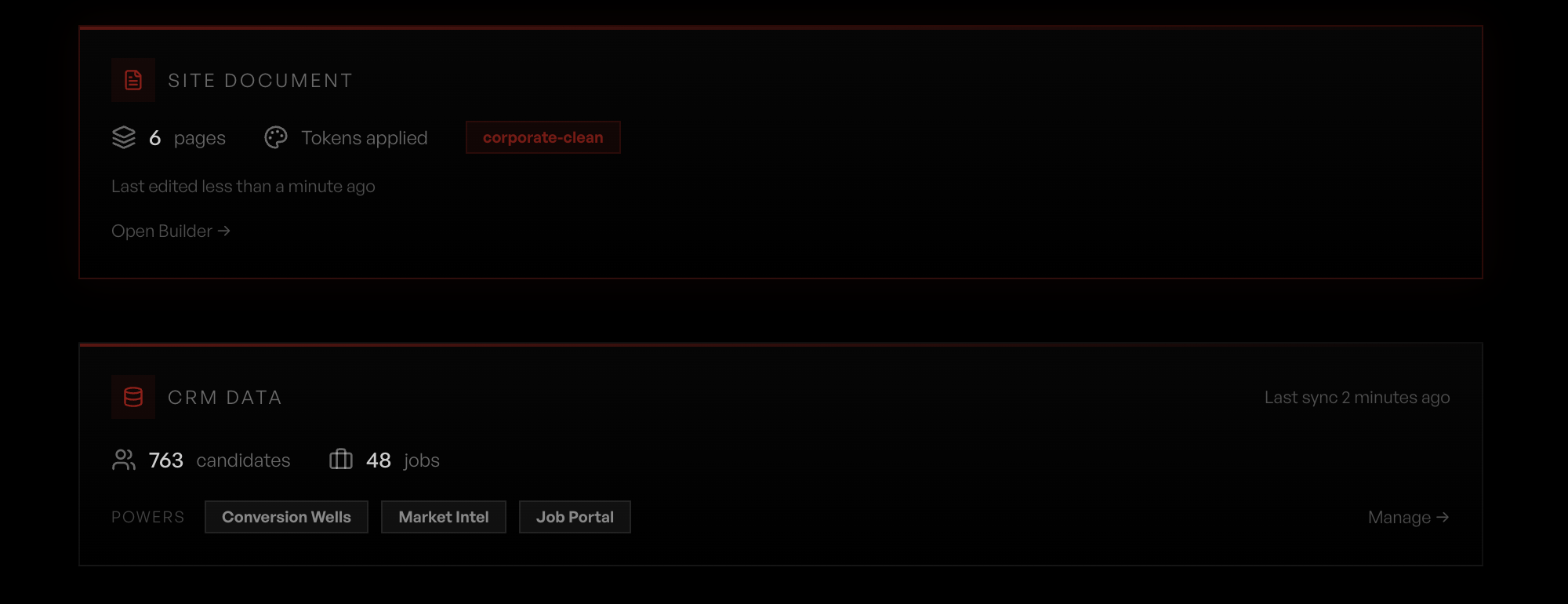
The **Settings** → **Connections** screen shows connection status, the last sync time, record counts, any errors, and a manual sync you can trigger at any time.
Guide complete
You've covered all 7 steps. Check out the related guides below.
Still need help?
Our support team is here to assist you.