
Atlas CRM Integration
Connect Atlas to sync projects, candidates, and pipeline data with Redsun.
Navigate to Connections
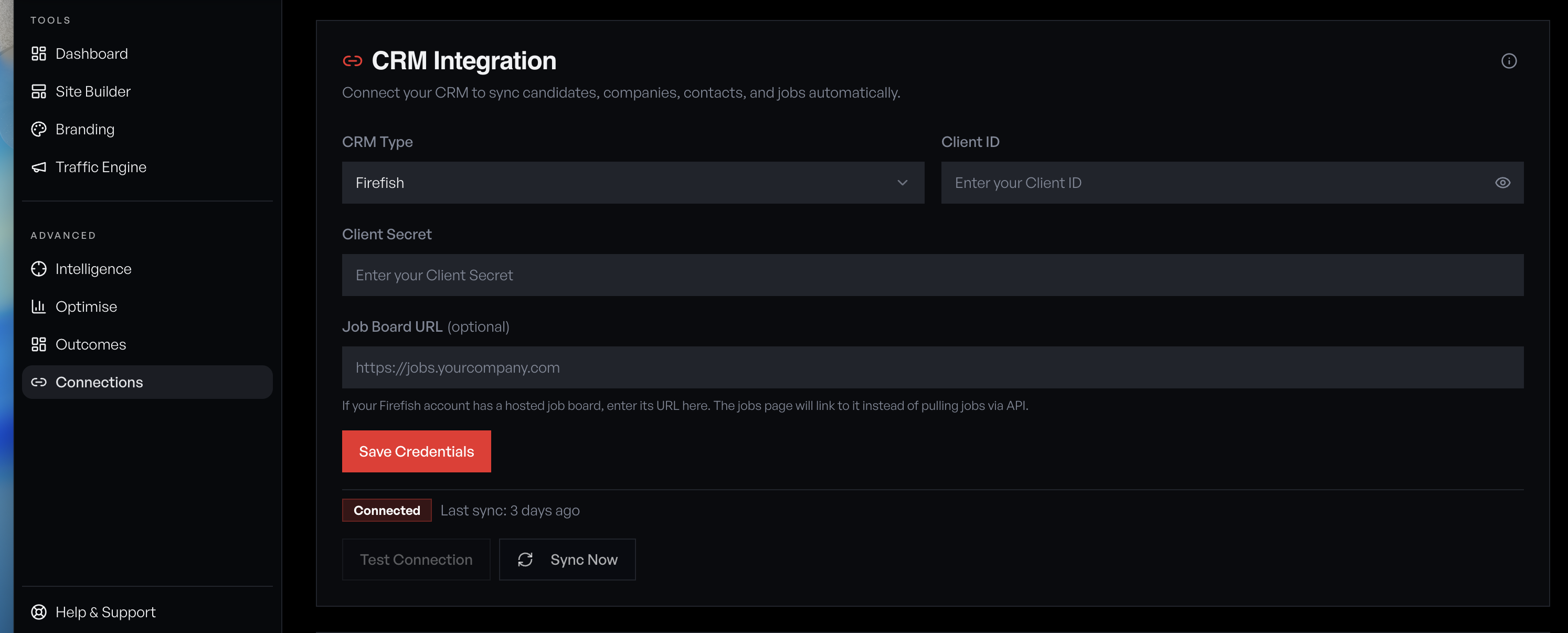
Go to **Settings** → **Connections**. You'll see the CRM Integration panel with a provider dropdown and connection status.
Select Atlas as your provider
Open the CRM Type dropdown and select 'Atlas'. The form updates to show the fields Atlas requires: API Key and Owner Email (the Atlas user email used for activity attribution).
Generate your Atlas API key
In Atlas, go to **Settings → Integrations → API Keys** and generate a new key. Copy it and paste it into the API Key field in Redsun. Enter the email address of the Atlas user who should be attributed as the owner of records created by Redsun (typically the account admin or a dedicated integration user).
Use a dedicated 'Redsun Integration' user in Atlas so all automated activity is clearly attributed and doesn't clutter individual consultant timelines.
Your API key grants full access to your Atlas data. Never share it publicly. If compromised, revoke it immediately in Atlas settings and generate a new one.
Save and test the connection
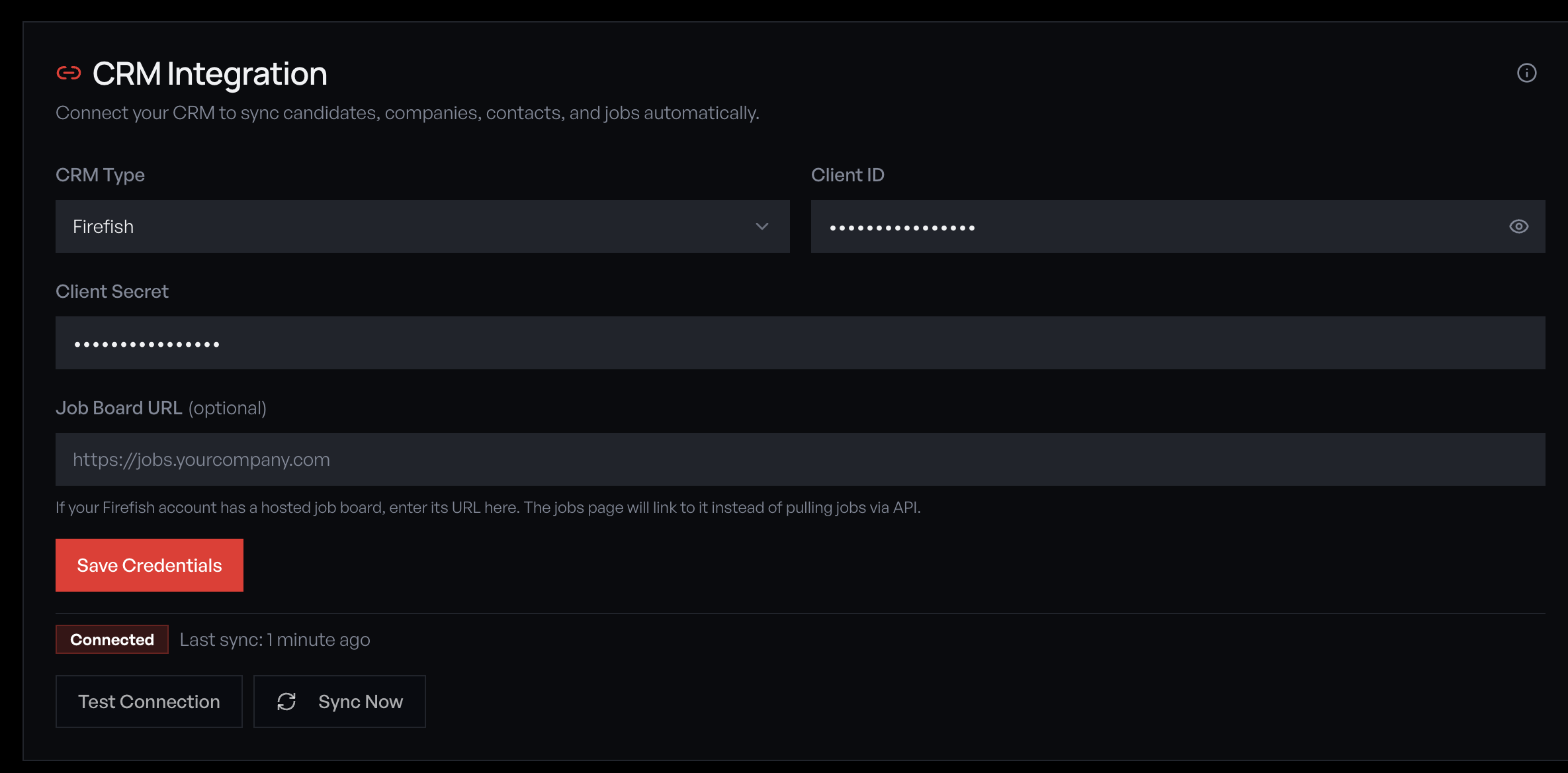
Click 'Save Credentials', then 'Test Connection'. Redsun verifies the key by checking your Atlas team. If successful, the status badge changes to 'Connected' and shows your team member count. If it fails, verify your API key is correct and hasn't been revoked.
Run initial sync
Click 'Sync Now' to pull your Atlas data into Redsun. The sync imports active projects (as job listings) and contacts (as candidates). Large databases may take several minutes for the first sync. A toast notification confirms completion with record counts.
What syncs from Atlas
Redsun pulls the following from Atlas: • **Projects** — Job role, description, salary, location, skills, seniority, contract type, work mode, and company details. Active projects appear on your job portal with full filtering. • **People** — Name, email, phone, LinkedIn, and current headline. Powers the talent snapshot in employer wells and candidate matching. • **Pipeline stages** — Each project's pipeline structure is cached so applications submitted via your site can be placed at the correct stage (e.g. 'Applied'). The scheduled sync runs hourly. The Connections screen shows the record counts from the last run. **Writeback:** When candidates apply via your site or leads come through wells, Redsun writes them back to Atlas — creating the person record, adding a note with context, and placing applicants directly onto the relevant project pipeline.
Monitor sync health
The **Settings** → **Connections** screen shows connection status, the last sync time, record counts, any errors, and a manual sync you can trigger at any time.
Using tracked links in Atlas emails
Atlas emails can identify individual site visitors and feed rich intent data back to your team. Embed tracked links in your Atlas email sequences and signatures using merge fields: **Email sequence template:** ``` Hi {first_name}, {ai_field} Explore opportunities: https://yoursite.redsun.dev/candidate?rs_contact_email={email}&rs_campaign=atlas-outreach ``` **Email signature template:** ``` https://yoursite.redsun.dev/?rs_contact_email={email}&rs_campaign=signature ``` **How it works:** 1. Atlas sends the email with the recipient's email embedded in the link 2. When they click through, Redsun identifies them against your synced contacts 3. Their browsing activity is tracked — pages visited, time spent, content engaged with 4. Intent scores are calculated and surfaced in your Visitor Intelligence dashboard 5. Re-engagement alerts fire when high-intent visitors return to your site **Using the AI merge field:** Atlas's AI-populated merge field (`{ai_field}`) can generate personalised CTA text around the tracked link — making each email feel tailored while the tracking link handles identity resolution behind the scenes. Replace `yoursite.redsun.dev` with your actual site URL and choose a descriptive `rs_campaign` value (e.g. `atlas-q1-candidates`, `atlas-signature`, `atlas-new-roles`) to track which campaigns drive the most engagement.
The rs_contact_email parameter is automatically cleaned from the URL after identification, so visitors never see it in their browser bar. All tracking is GDPR-compliant under legitimate interest.
Guide complete
You've covered all 8 steps. Check out the related guides below.
Still need help?
Our support team is here to assist you.