
AI Assistant (Helion)
Your marketing analyst — ask questions, run reports, and get site-specific recommendations.
Open Ask Helion
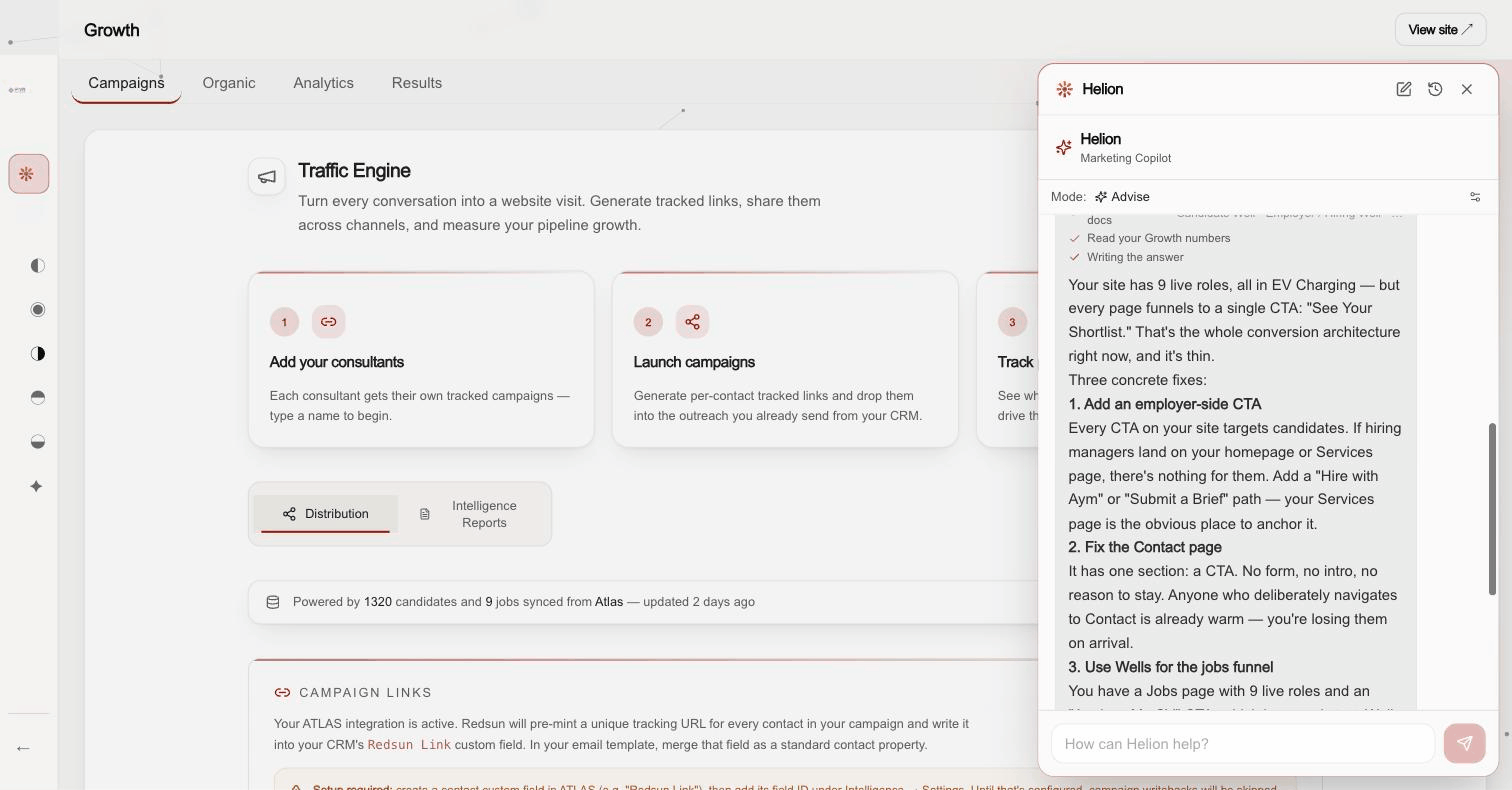
Click the **Ask Helion** button at the top of the workspace nav — the panel opens over whichever page you're on, and one conversation follows you across every hub. Your chat history is saved: reopen Helion and your last conversation is right where you left it.
Ask about your marketing
Ask things like 'How can I improve my conversion rate?' or 'What should I improve first?'. Helion shows its working — reading your site, your platform docs, and the numbers on the hub you're on — then answers with specific, prioritised recommendations grounded in your actual site and data.
Helion's answers end with action buttons that jump you straight to the right hub to act on the advice.
Run one-click reports
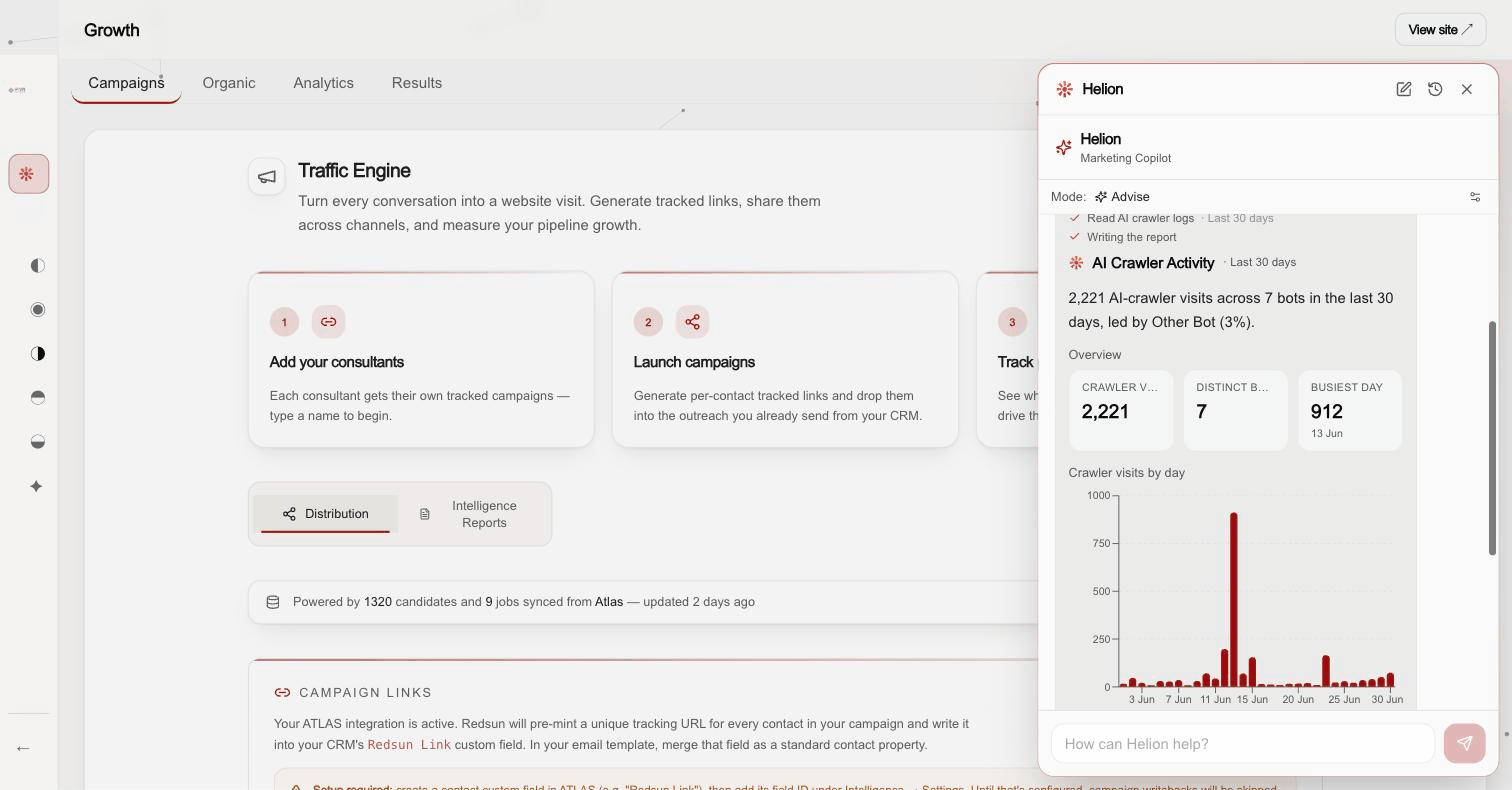
Start a new chat and you'll see the Reports row. One click runs a report such as AI Crawler Activity, which returns metric cards, charts, and a per-bot breakdown of which AI engines have been crawling your site.
Small changes, your approval
When Helion's advice is a small safe change — adding a call-to-action button or tightening a line of copy — it can propose the exact edit. You review the proposal and click Apply; nothing changes on your site without your say-so. Design and layout stay in your hands in the site editor.
Guide complete
You've covered all 4 steps. Check out the related guides below.
Still need help?
Our support team is here to assist you.