
Configuring Wells
How to switch wells on, edit their copy and sections, and tune the capture form.
One switch turns a well on
Go to **Settings** → **Features**. **Candidate Conversion Well** and **Employer Conversion Well** are single master switches — turning one on enables the feature and puts its pages into your site. When a well is off, its pages are not served.
Feature settingsWells are ordinary pages in the editor
Open the **Site** hub. In your site's navigation on the canvas, wells appear as **Candidate journey** and **Employer journey**, with their pages listed underneath. Click through to any of them and edit exactly as you would a homepage: **Contents** for copy and imagery, **Colours** for styling, **Layout** for section variants and order, **Motion** for animation.
There is no separate wells configuration screen any more. Everything the old one did is edited on the page itself.
Landing page sections
Each section on a well page is independently editable. Click text to rewrite it in place, use the variant arrows under **Layout** to switch arrangement, and use the inline add and remove bars to change which sections are present. Hidden sections can be restored from the **Hidden on this page** row.
Results section variants
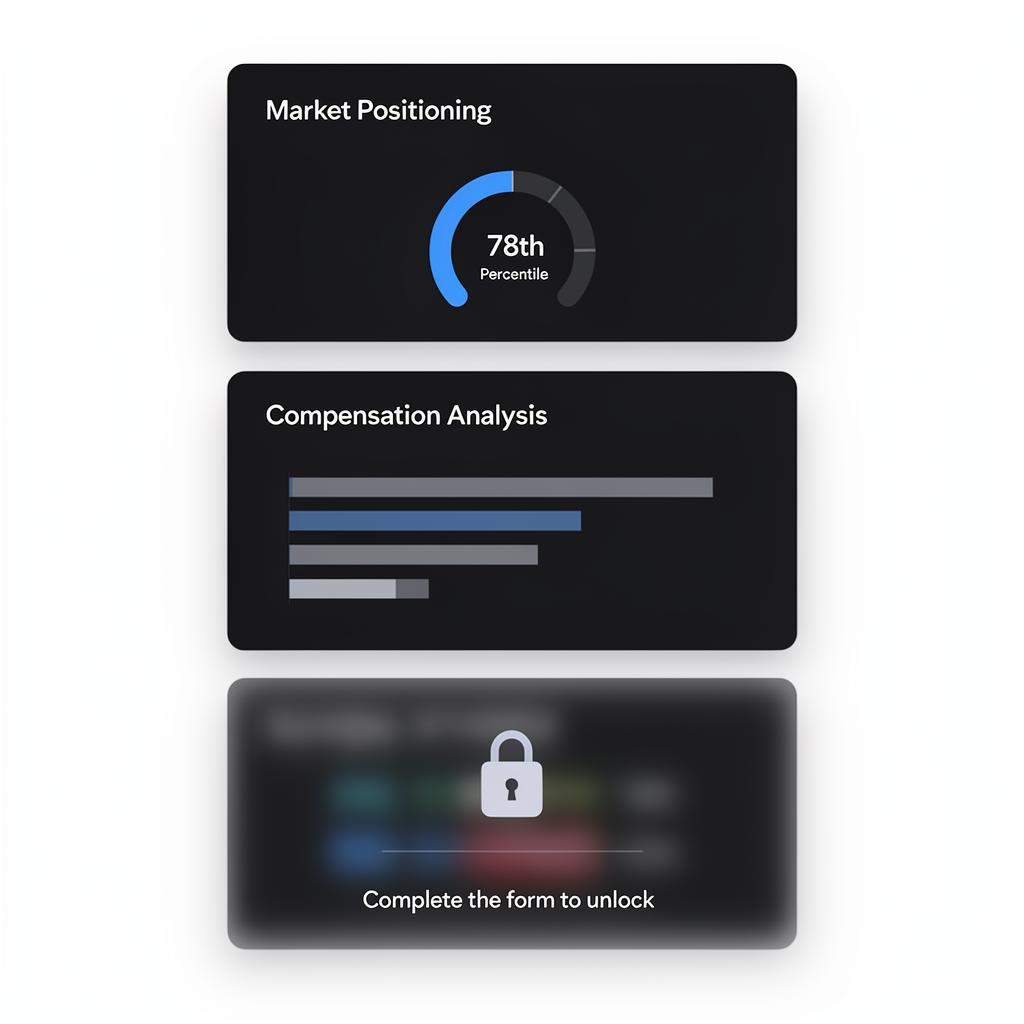
Each results section ships several display treatments — a rich visualisation, an alternative angle on the same data, and a compact key-value list. Step through them with the variant arrows under **Layout**. There are twelve candidate results sections and twelve employer ones.
The capture form
Select the form section and open **Contents** → **Form fields…** to edit what it collects. The heading above the form and the submit button label are inline-editable like any other copy. Candidates upload a CV; employers submit a role. Layout variants change the look, not the data collected.
'Discover your market value' tends to read better than 'Submit CV'. Try different copy and watch the funnel in Growth → Results.
Guide complete
You've covered all 5 steps. Check out the related guides below.
Still need help?
Our support team is here to assist you.